Get started
Introduction
What ocelkit does, and the three parts you work with: process files, the map, and the check.
ocelkit is a TypeScript toolkit for mapping the processes in your software. You describe a process in a short file, and ocelkit draws it from your own event data, with the real count on every step. It runs on your machine.
- Step 1
Describe a process
List its steps and the order you expect them in, in a TypeScript file.
- Step 2
Open the map
ocelkit dev draws it from your data, with a count on every step.
- Step 3
Check it
ocelkit check finds every name that your data doesn't have.
Process files
A process file names the steps of a process and the order you expect them in. It's plain TypeScript, so it lives in your repository, next to your code.
Here's a process file for order payments. It asks one question: do customers pay once we confirm their order, or do we have to remind them?
import { defineProcess } from 'ocelkit'// Do customers pay once we confirm their order, or only after a reminder?export default defineProcess({ name: 'Order payments', activities: { confirmOrder: 'confirm order', paymentReminder: 'payment reminder', payOrder: 'pay order', }, flows: { orders: [ ['confirmOrder', 'payOrder'], ['confirmOrder', 'paymentReminder'], ['paymentReminder', 'payOrder'], ], },})Let's break this down:
activitiesgives each event type you care about a short name.'pay order'is the event type in your data, andpayOrderis what you call it in the file.flowslists the steps you expect for each type of object, as pairs of activities.ordersis an object type in your data.defineProcesstypes the pairs, so a flow that names an activity you haven't declared fails in your editor.
The map
Run ocelkit dev and the map opens in your browser. Every activity in your file is a step on the map, with the number of its events in your data. Every flow is a line between two steps, with the number of orders that took it.
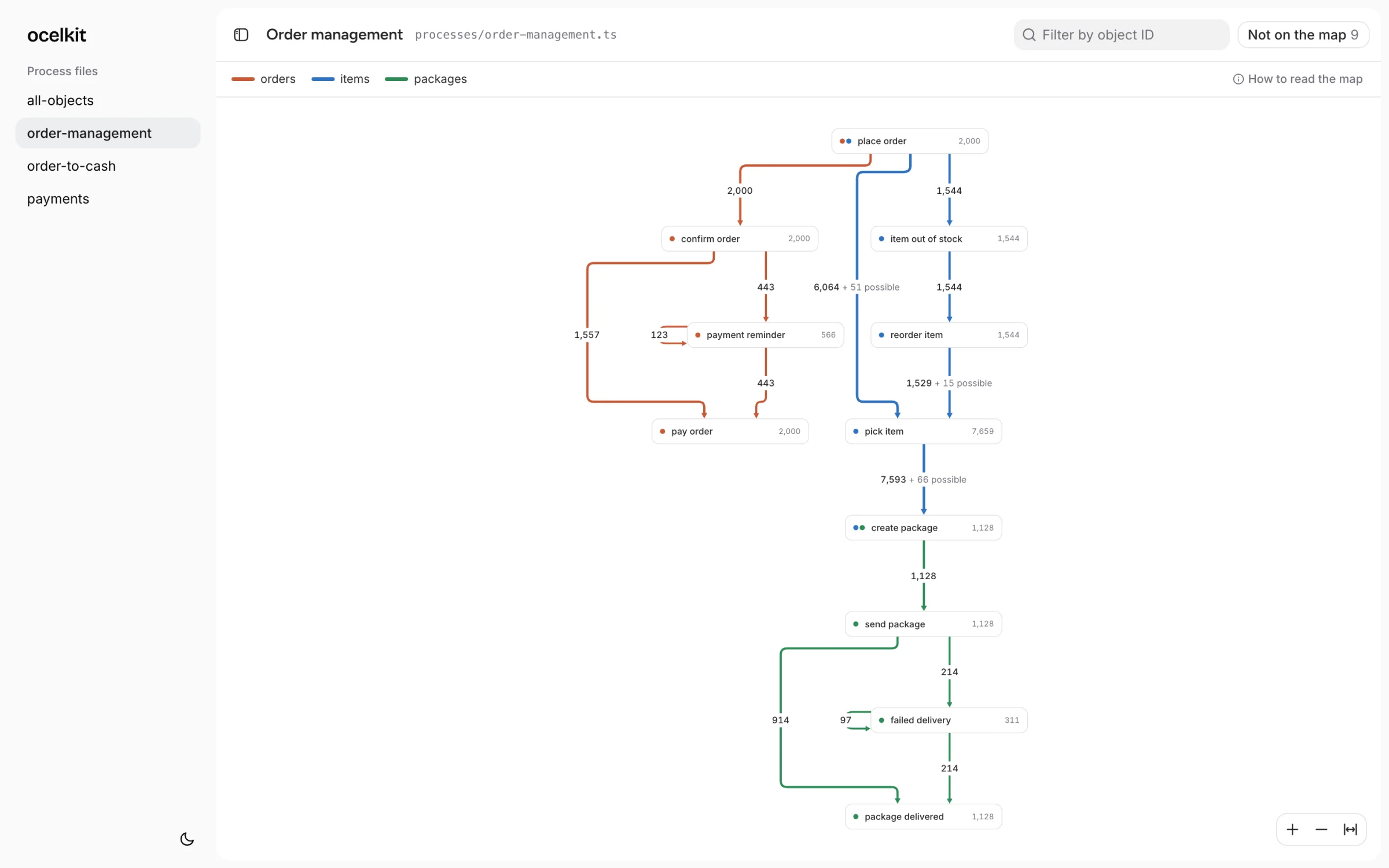
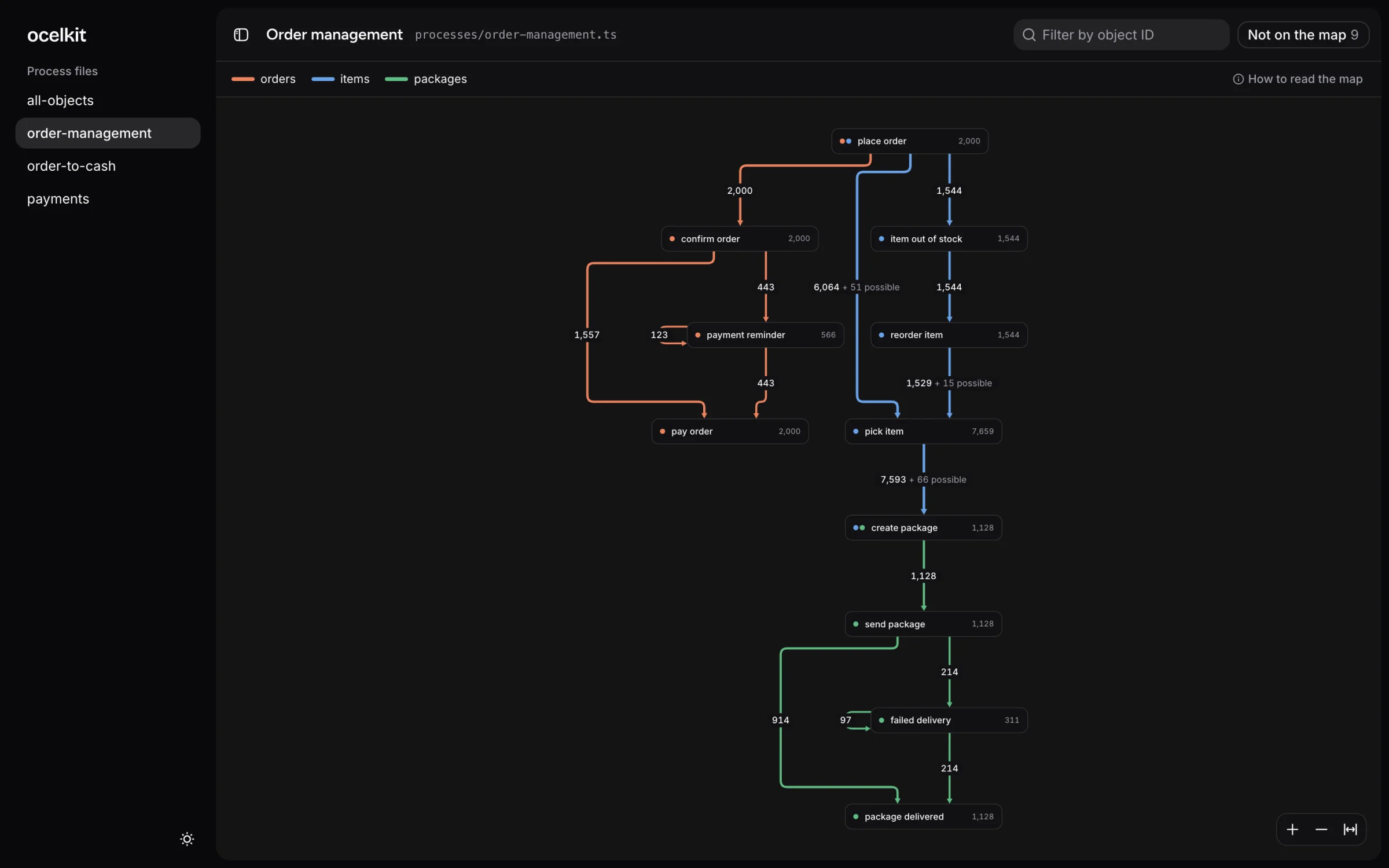
All 2,000 orders were confirmed. 1,557 of them went straight to payment, and the other 443 got a reminder first.
The map redraws when you save the file. Click any count to see the orders behind it, or enter an order ID to follow one order from start to end.
Anything the orders did that your file doesn't list shows up under Not on the map. Here, a second payment reminder happened 123 times. The map never hides what's in your data.
Your data
ocelkit reads event logs in the OCEL 2.0 format, saved as SQLite. Each event has a type, a time, and the objects it involves, such as an order or a package.
A config file at the root of your project tells ocelkit where to find the log and your process files:
import { defineConfig } from 'ocelkit'export default defineConfig({ data: './data/orders.sqlite', processes: './processes',})Reconstruction
Most systems don't keep an OCEL log. The events of a process sit in your code, your database, your logs, and tools like Stripe. Reconstruction is the part of ocelkit that gets you from there to a log, so you can use the rest of the toolkit.
It's a skill for your coding agent. Your agent asks what you want to map, writes the code that builds the log, and checks the log against your data. To install it, see Agent skill.
Built for you and your agents
You and your coding agent work from the same files. You read the map. Your agent reads the files and runs the check, without a browser.
- Typed files. A flow that uses an activity the file doesn't declare fails in the editor, before anything runs.
- A check against your data.
ocelkit checkcompares every name in your files with the log. A name the log doesn't have is an error, with the closest match. - Output for agents.
ocelkit check --jsonprints the same result in a form your agent can parse.
Here's the check on a project where one file has two typos:
$ ocelkit checkprocesses/deliveries.ts error activities.delivered "package deliverd" is not an event type in the data. Closest: "package delivered". error flows.package "package" is not an object type in the data. Closest: "packages".processes/payments.ts no problems2 errors, 0 warningsNext steps
Now that you know what a process file is and what the map shows, set up ocelkit in your own project. The quickstart takes you from install to your first map.
- QuickstartInstall ocelkit, point it at your data, and open your first map.
- Process filesName the steps of a process and the order you expect. The editor catches a wrong name.
- Reading the mapRead the counts, follow one object, and see what your file leaves out.
- Checking your filesCompare every name with your data, and give your agents the result as JSON.
- Using your own dataGet your events into an OCEL 2.0 SQLite file, and fix what ocelkit reports about it.
- Agent skillYour coding agent builds an OCEL 2.0 log from your systems, as code it checks.
- defineProcessEvery field of a process file.
- defineConfigEvery field of ocelkit.config.ts.
- Commandsocelkit dev, ocelkit check, and ocelkit describe: what each one prints, and how to read it.