Guides
Reading the map
Read the counts, follow one object, and see what your file leaves out.
A map shows what happened in your data, for the activities and the pairs of one process file. This page reads one map from start to end: what happens to an order and its items once the order is placed.
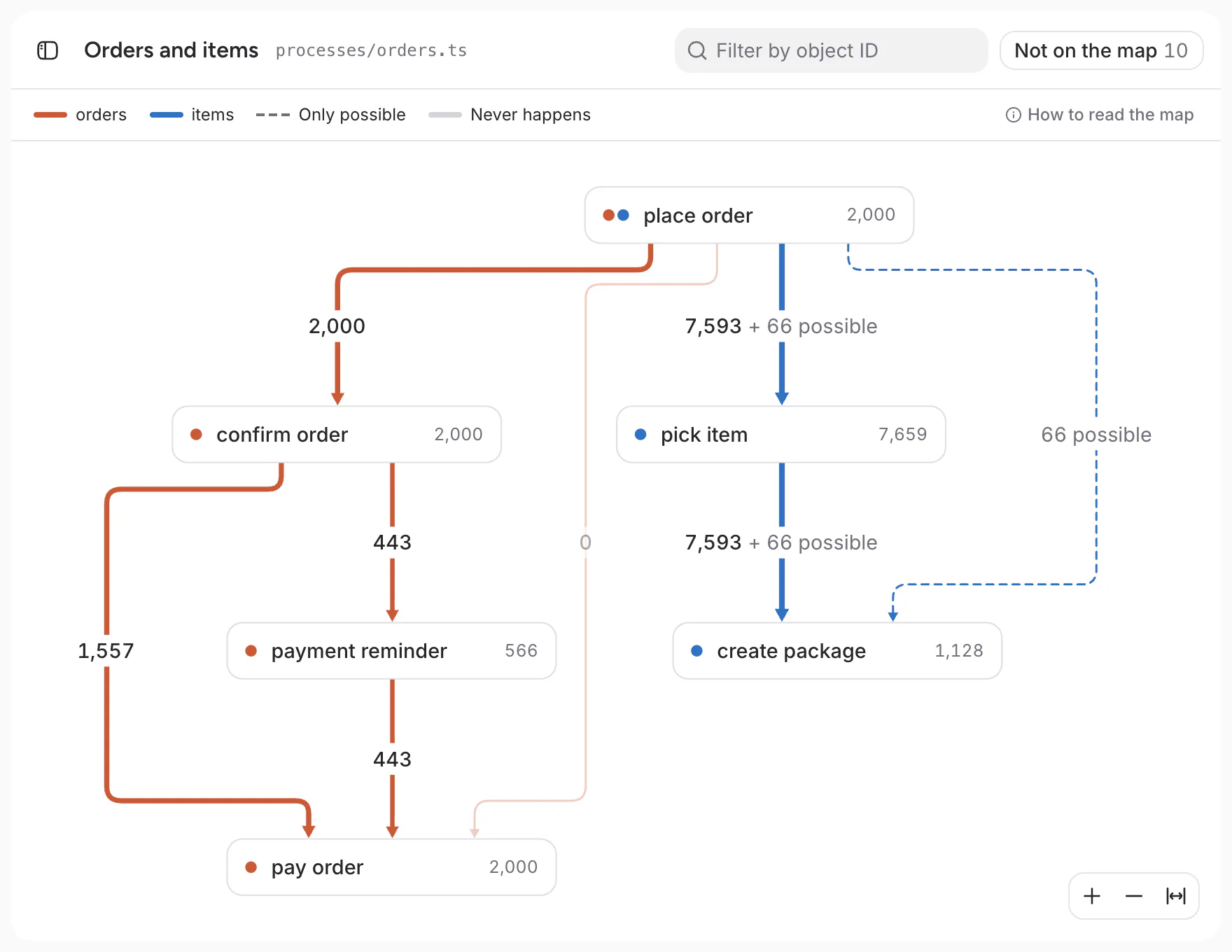
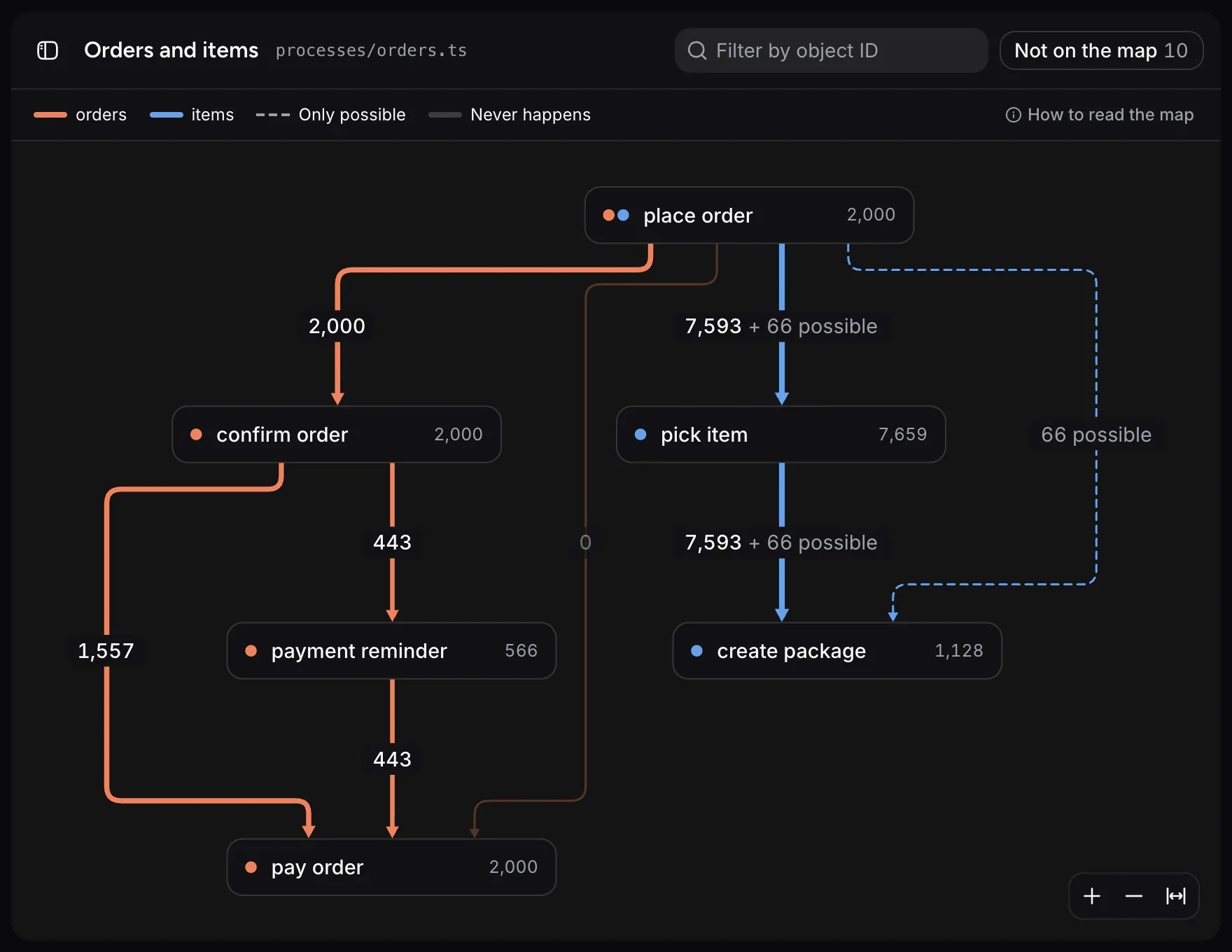
Here are the flows of its file:
flows: { orders: [ ['placeOrder', 'confirmOrder'], ['placeOrder', 'payOrder'], ['confirmOrder', 'payOrder'], ['confirmOrder', 'paymentReminder'], ['paymentReminder', 'payOrder'], ], items: [ ['placeOrder', 'pickItem'], ['placeOrder', 'createPackage'], ['pickItem', 'createPackage'], ],},Boxes, lines and numbers
Everything on the map is a box, a line or a number. Pick one to see it on the map:
Possible, dashed and faded
Sometimes an object has two events at the same time, so their order is unknown. ocelkit doesn't guess. It counts the moves that depend on that order apart, as possible, and never adds them to the rest.
The key above the map names the dashed and the faded lines only when the map has them.
See what a number counts
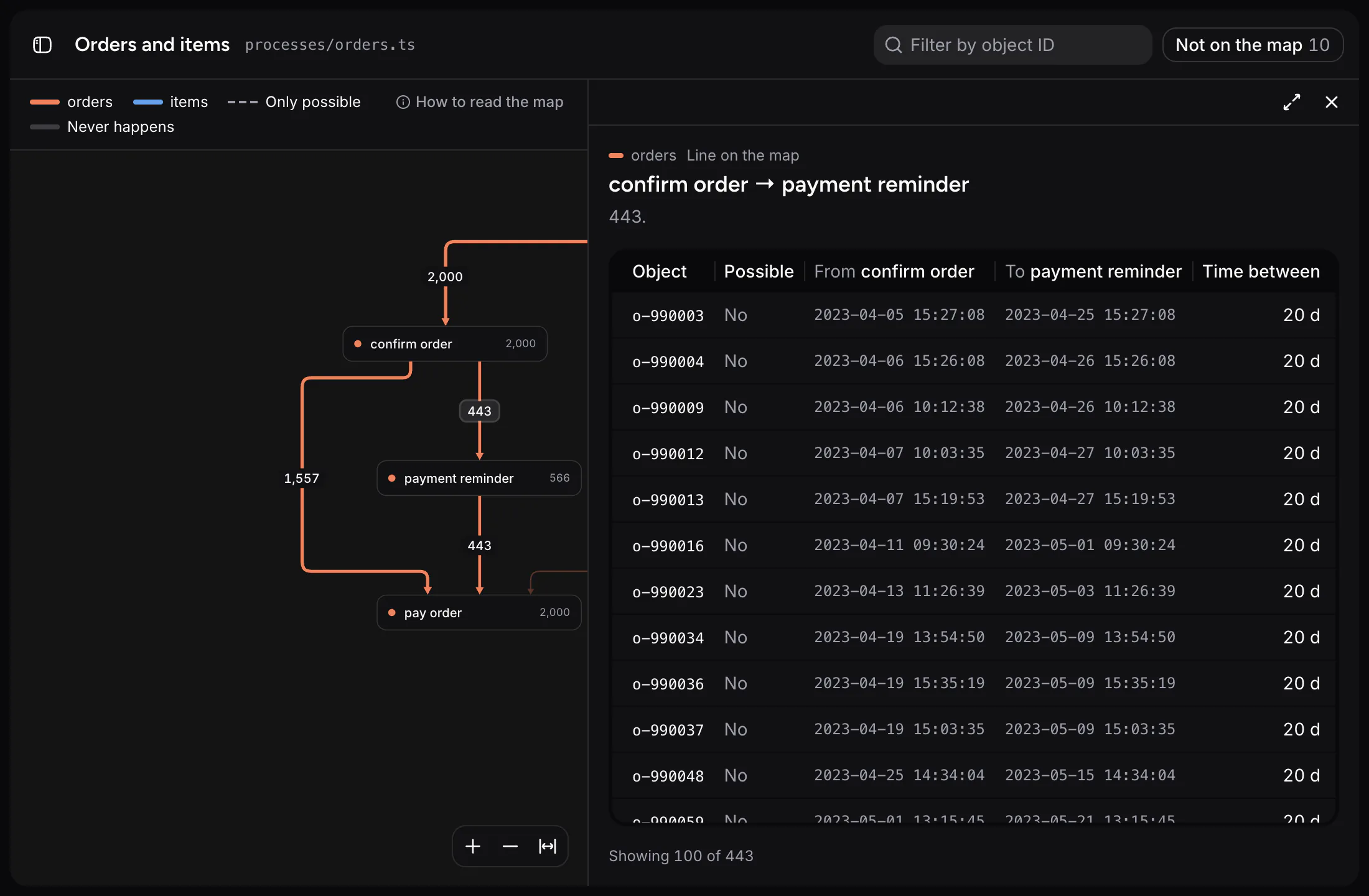
Every number opens the data behind it. Click the 443 between confirm order and payment reminder, and a panel lists those 443 orders: when each was confirmed, when it got its reminder, and the time between.
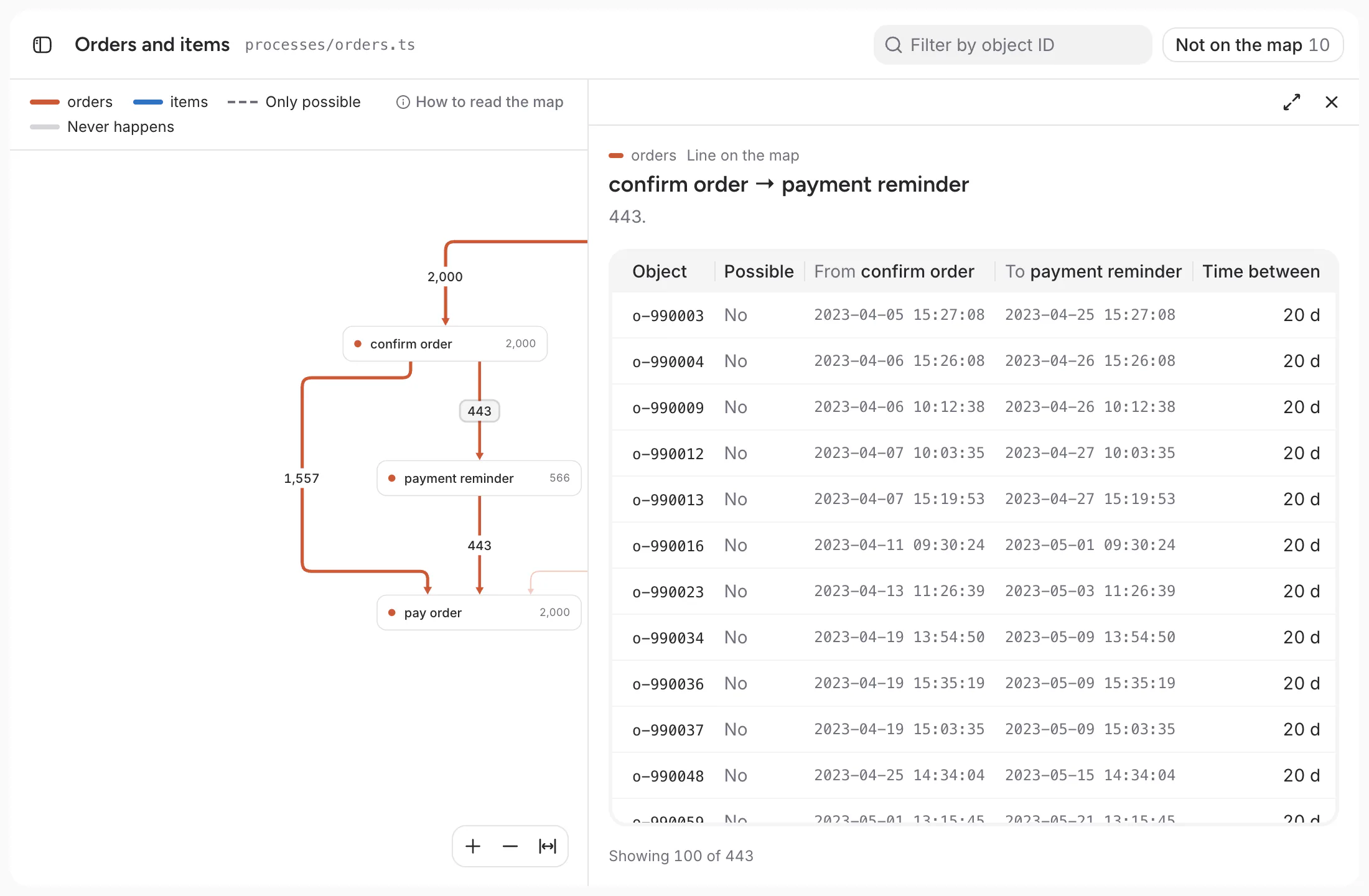
Click a row to open that order. Click a box instead of a number, and the panel lists its events.
Follow one object
Type an ID into Filter by object ID. The map then counts only that object and the objects linked to it, and draws its path as a thick line, with a ring around each of its activities.
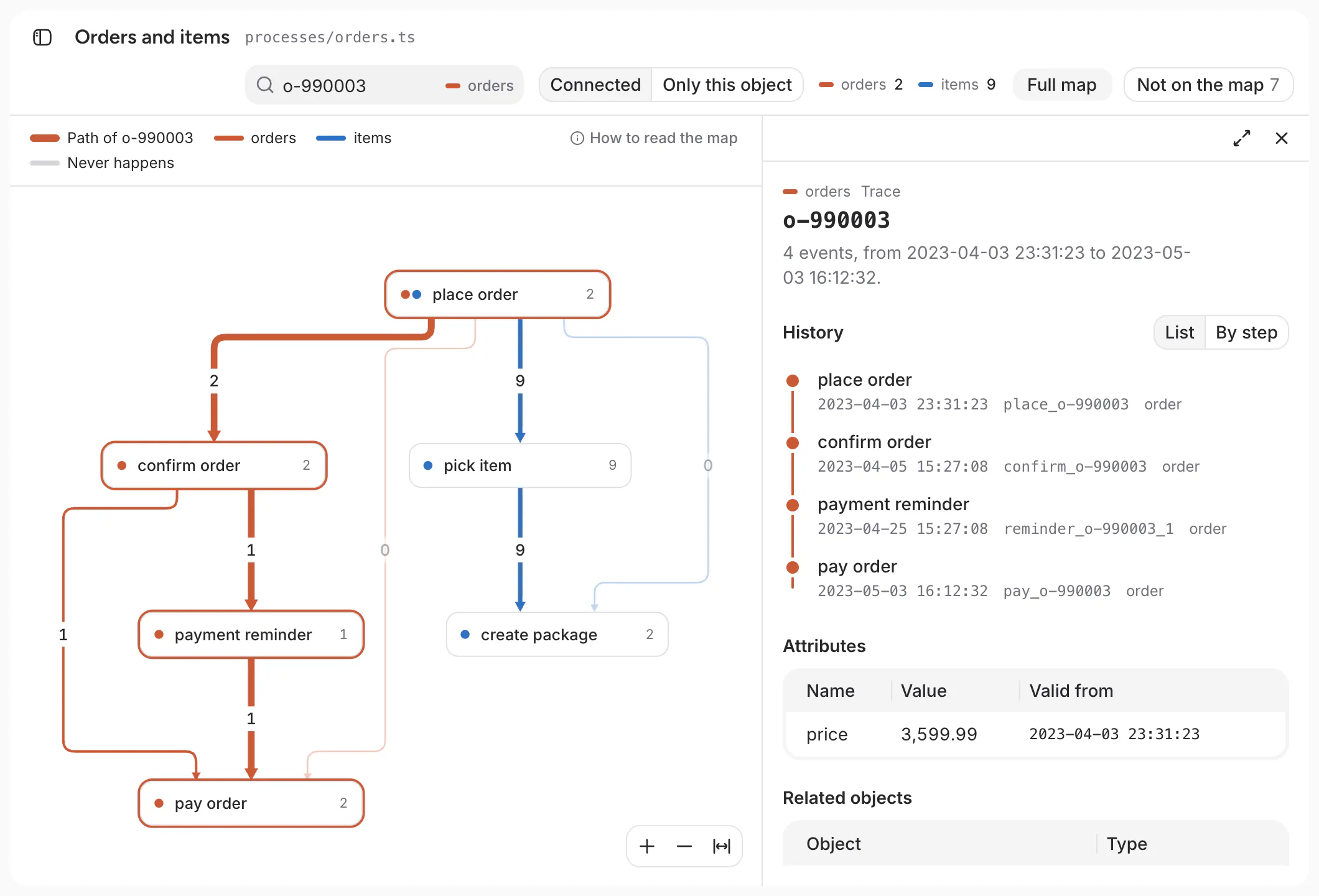
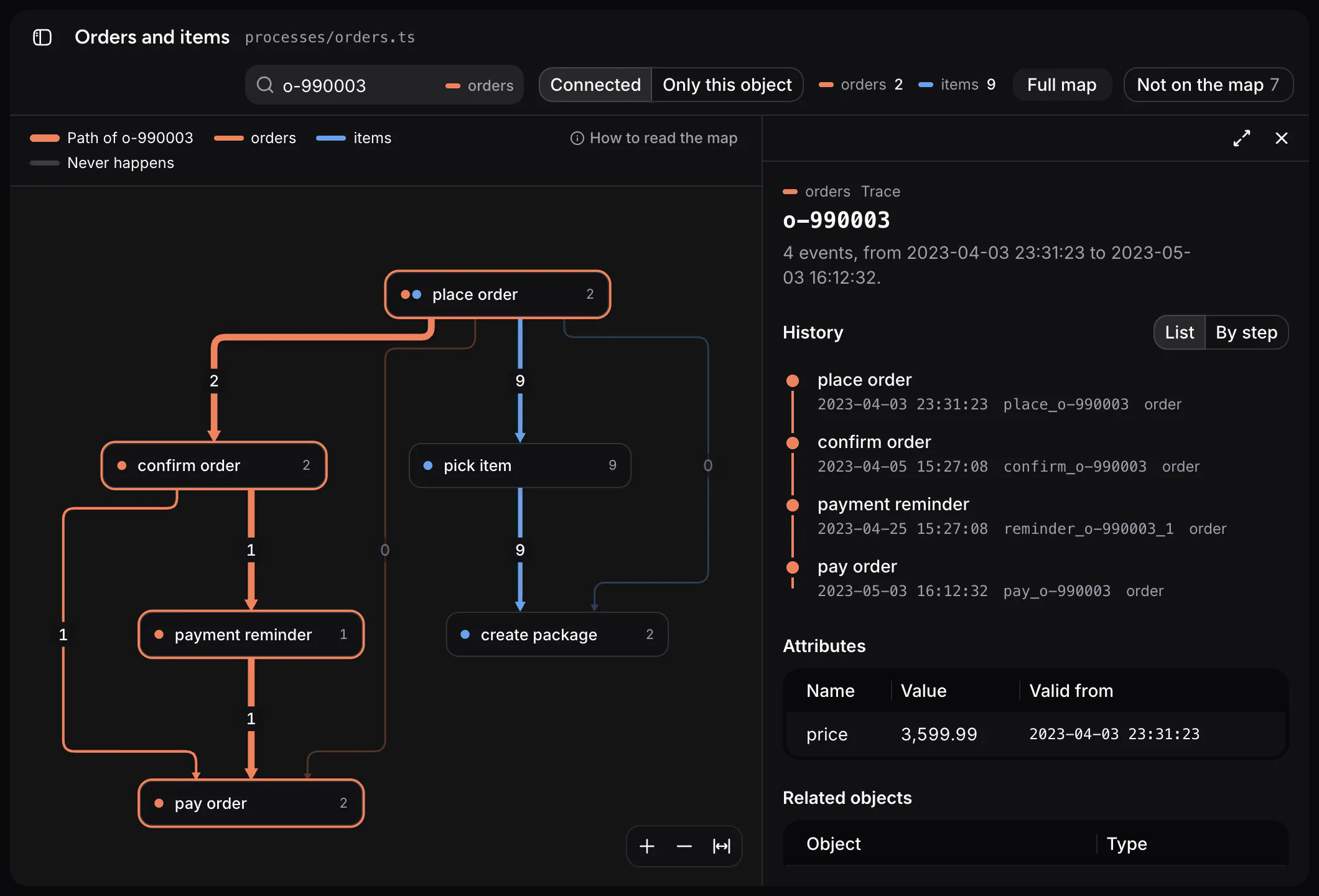
Order o-990003 was placed, confirmed, reminded, and paid. The panel has its history, its attributes and its related objects, and By step replays the history one event at a time.
Connected counts every object linked to this one, directly or through other objects: here, 2 orders and 9 items. Only this object counts it alone. Full map brings everything back.
See what the file leaves out
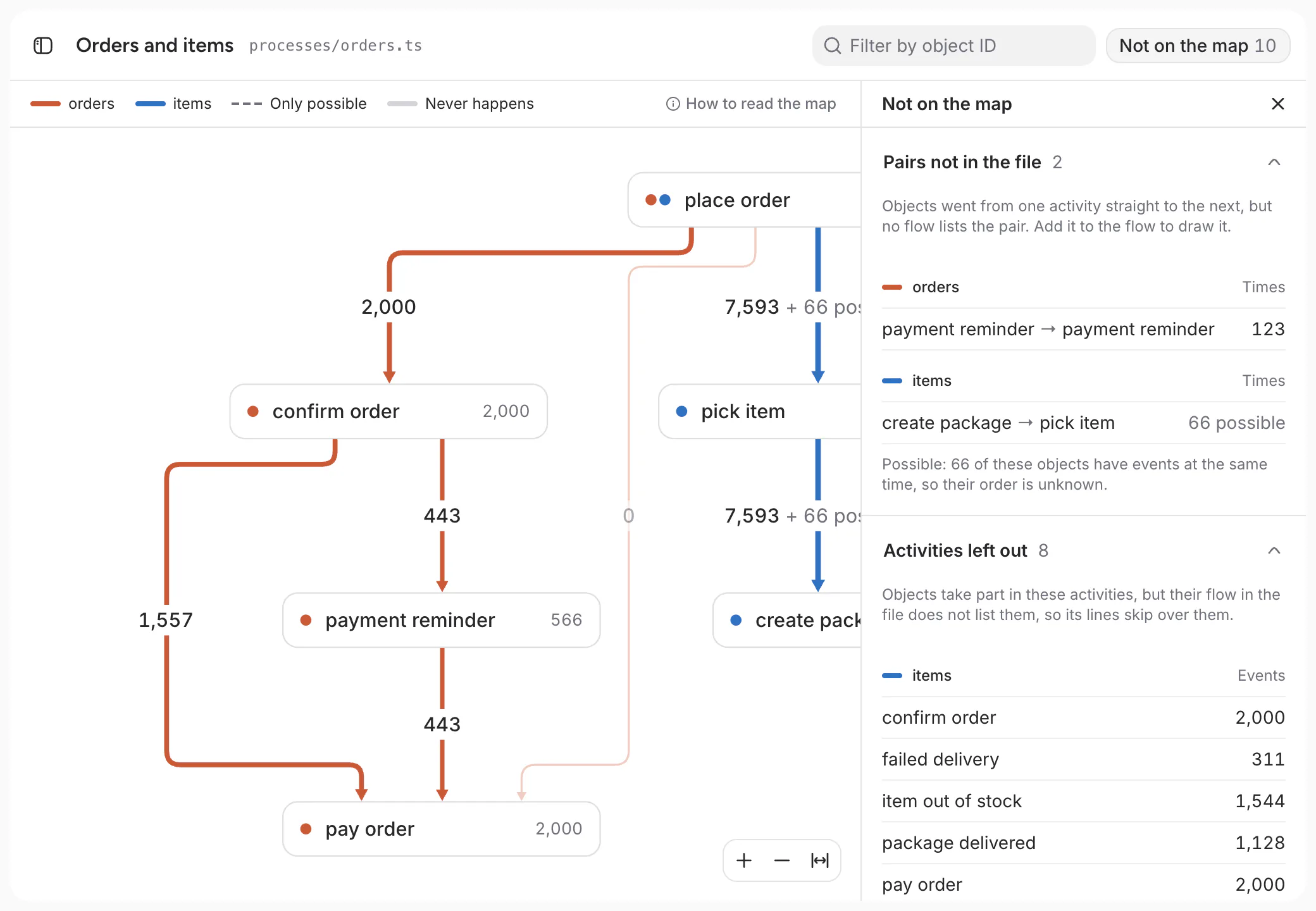
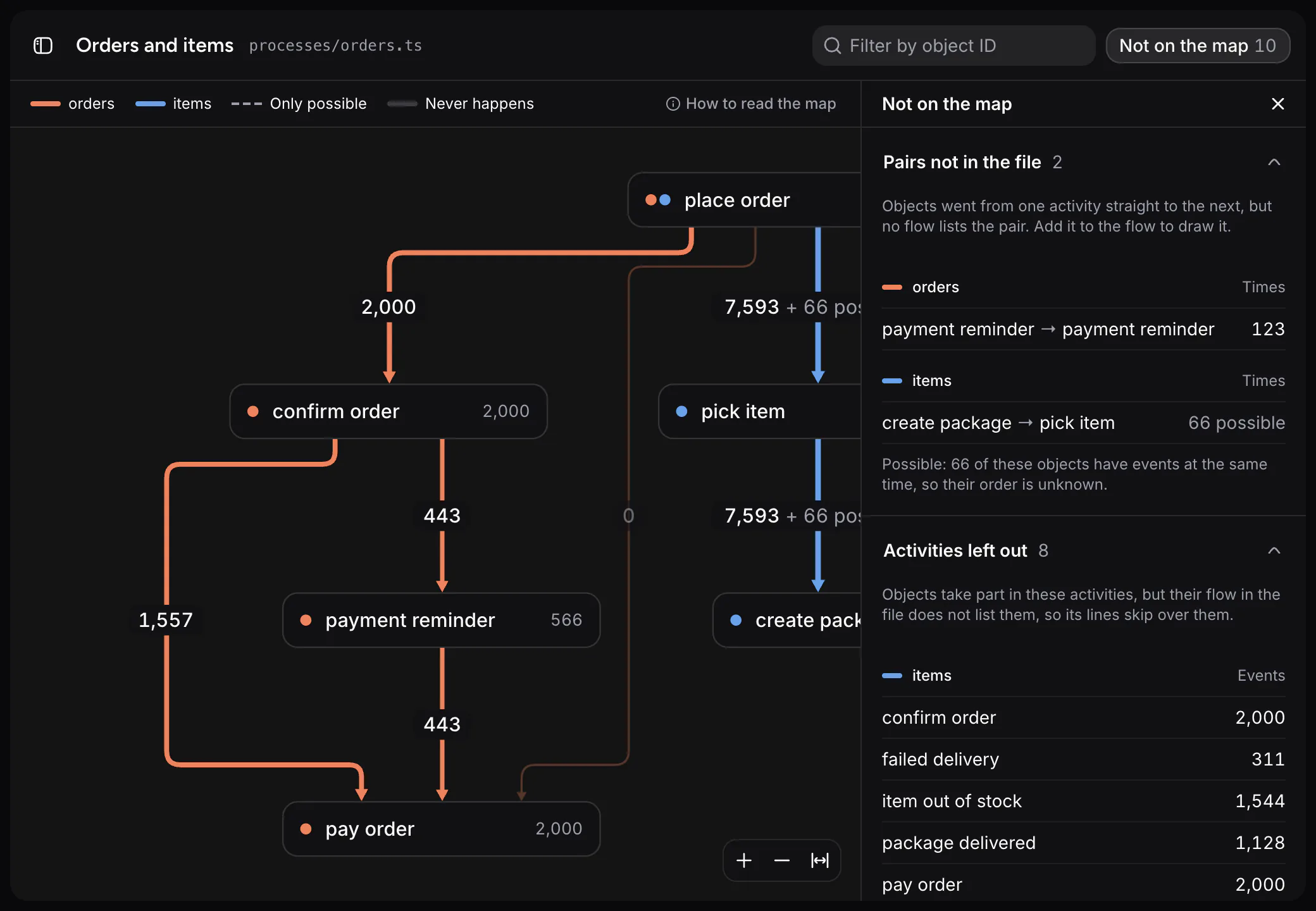
The map draws only what the file lists. Not on the map holds the rest, so nothing is hidden:
- Pairs not in the file. Objects went from one activity straight to the next, but no flow lists the pair. Here, payment reminder → payment reminder happened 123 times: some orders got a second reminder.
- Activities left out. Objects take part in these activities, but their flow doesn't list them, so its lines skip over them.
Add a pair or an activity to the file, and it moves onto the map. Process files shows how.
Next steps
A warning from the check shows above the map until you fix it, and a file with an error has no map. Learn what the check reports in Checking your files.